 Alpha Docs
 Work Time
The work time widget allows you to manage your work hours at the office.
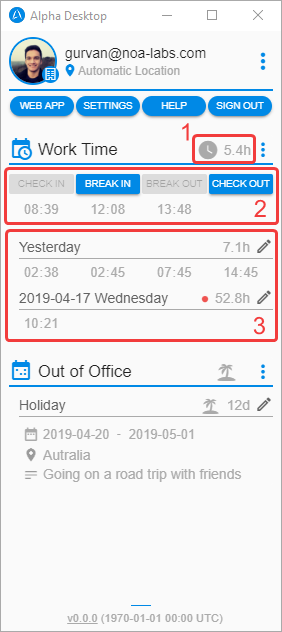
- Your total work hours of the day.
- This is your current work time of the day.
- This is your previous days.
Menu
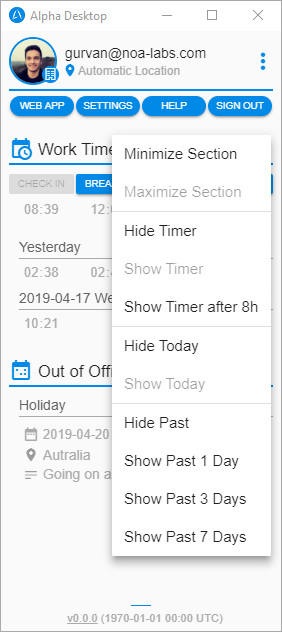
- You can
Minimize/Maximizeyour section. - You can choose to
Hide/Showthe timer or only show it after you reach 8h. - You can
Hide/Showyour current work time of the day. - You can
Hide/Showyour previous days and choose to only display the last "1/3/7 Day(s)".
Manage Your Work Hours
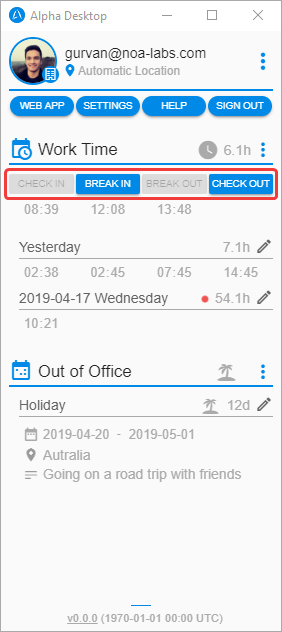
- You can click on the buttons to add a new record on your current work time of the day.
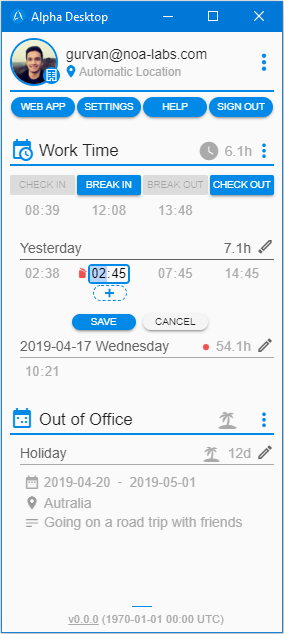
- By clicking on the records in your current day or previous days, you can edit or delete them.
Just don't forget to click on theSavebutton (or click outside) to validate your changes.
If you didn't want to edit your records you can pressCancel.
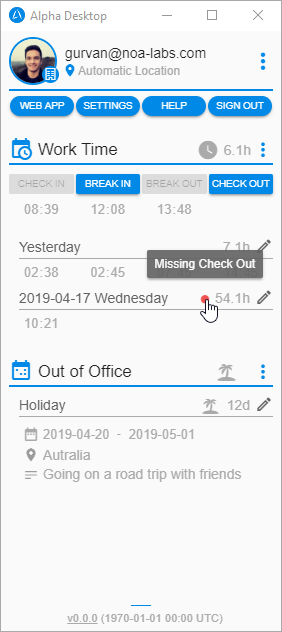
- Alpha will warn you when a record is missing. To remove the warning just add the missing record.
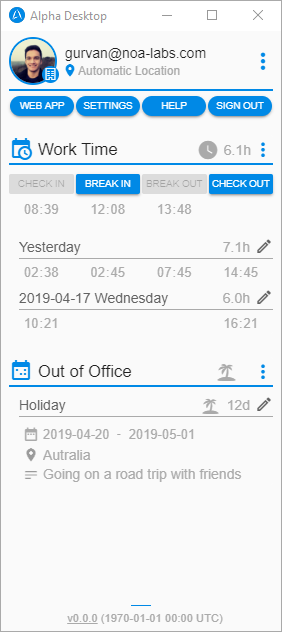
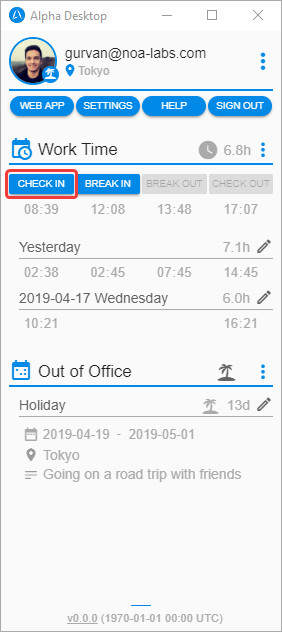
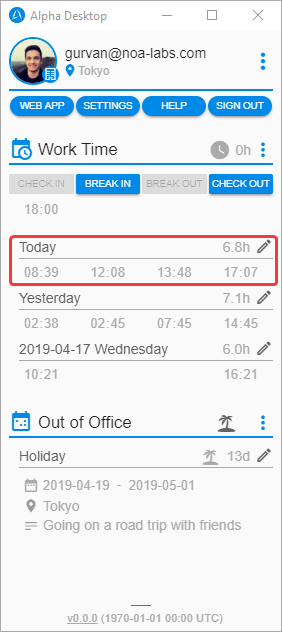
- After you check-out, your current day will be move after 6h in your previous days. If you don't want to wait, just check-in again and it will move your day to your previous days.
TIP
Alpha should automatically check-in for you when you arrive at the office for the first time of the day. You should wear your Mi Band and be disconnected from the "Mi Fit" app.
WARNING
Alpha is smarts enough to understand if you wish to trick her.
Offline Mode
The offline mode helps you to manage your time when the network is down.
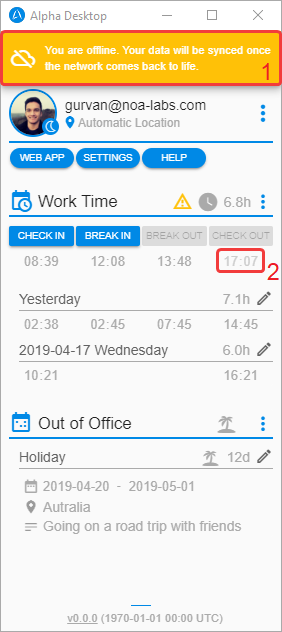
- This message appears when the network is down.
- You still can add records if the network is not working. The record will be displayed with a light grey color instead of grey, that means the record is still not synchronized.
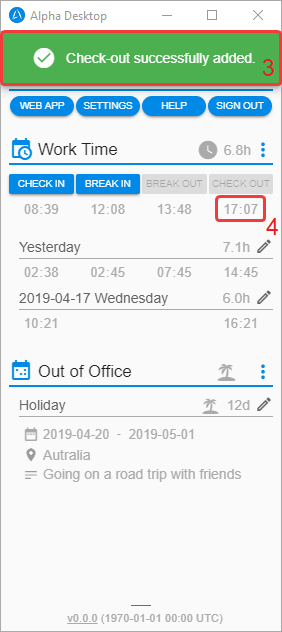
- Once the network came back, your records will automatically be synchronized and your record will switch to a grey color.
- The record has been automatically saved.
WARNING
In offline mode you cannot edit/remove your records.