 Alpha Docs
 Out Of Office
The out of office widget allows you to manage your leaves.
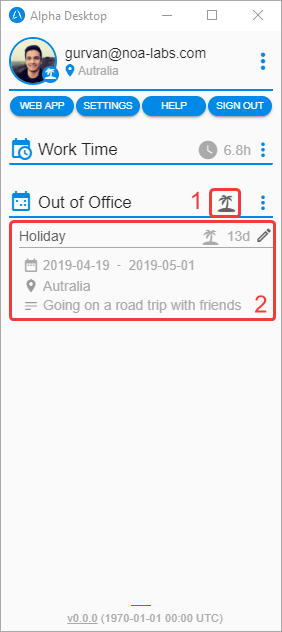
- Your active/upcoming leaves. When the icon is dark grey it means your leave is currently active.
- Your leaves are saved in the area. By clicking on them, you can edit or delete them.
Menu
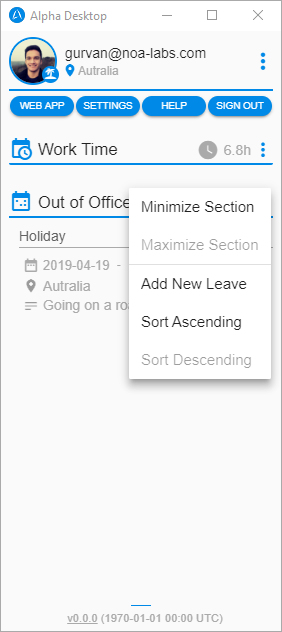
- You can
Minimize/Maximizeyour section. - You can add a new leave and sort by
Ascending/Descendingyour leaves.
Manage Your Leaves
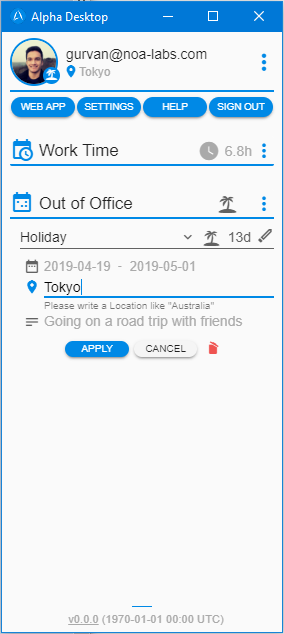
- You can edit or delete your leave by clicking on them.
Just don't forget to click on theSavebutton (or click outside) to validate your changes. If you didn't want to edit your records you can pressCancel.
TIP
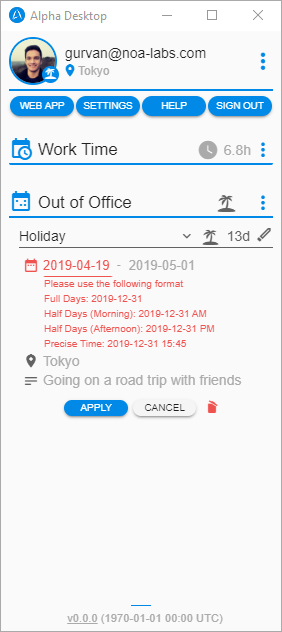
You can have different date formats, just use the one which match your needs:
- Full Days: 2019-12-31
- Half Days (Morning): 2019-12-31 AM
- Half Days (Afternoon): 2019-12-31 PM
- Specific Time: 2019-12-31 15:45
Offline Mode
In offline mode your data will be automatically synchronized once the network came back.
WARNING
In offline mode you cannot remove a leave.